
How to install Homeway on Android phones and tablets
Homeway supports phones and tablets running Android 7.0 or later, so you can watch live TV, dramas and variety shows from China on your phone too. If your phone has Google Play, install it from there; if not, download the installer from our website.
Method 1: Install from Google Play (recommended)
- Open the Google Play Store and search for “Homeway”, or open Homeway on Google Play directly on your phone.
- Tap Install, then Open when it’s done.
Apps installed from Google Play update automatically.
Method 2: Download the installer (APK)
If your phone doesn’t have Google Play (some China-market phones don’t), you can download the installer directly.
- Open homeway.tv/android in your phone’s browser to download the installer.
- When the download finishes, open the installer from the notification or from your browser’s Downloads.
- If you’re told apps from unknown sources aren’t allowed, tap Settings, turn on “Install unknown apps” (the name varies by brand) for the browser you’re using, then go back and continue.
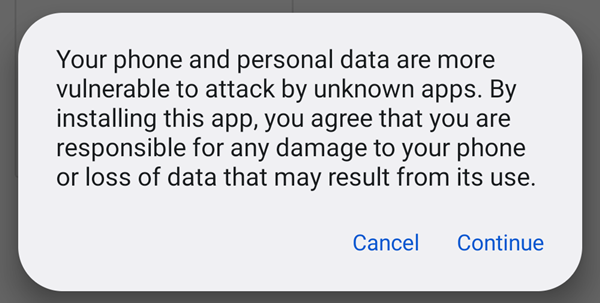
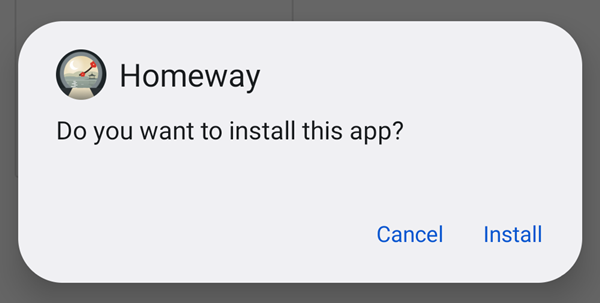
- If you’re warned that apps from unknown sources may be risky, tap Continue; when asked “Do you want to install this app?”, tap Install. If Google Play Protect suggests scanning the app, tap “Scan app”, or tap “More details” and choose “Install without scanning”.
- When it’s installed, open Homeway. When a new version is out, Homeway will let you know — just download it and install it over the old one.
This installer only runs on 64-bit systems, which covers phones from the last several years. If a very old phone can’t install it, use the installer at homeway.tv/tv instead — it also runs on 32-bit systems.
Sign in and start watching
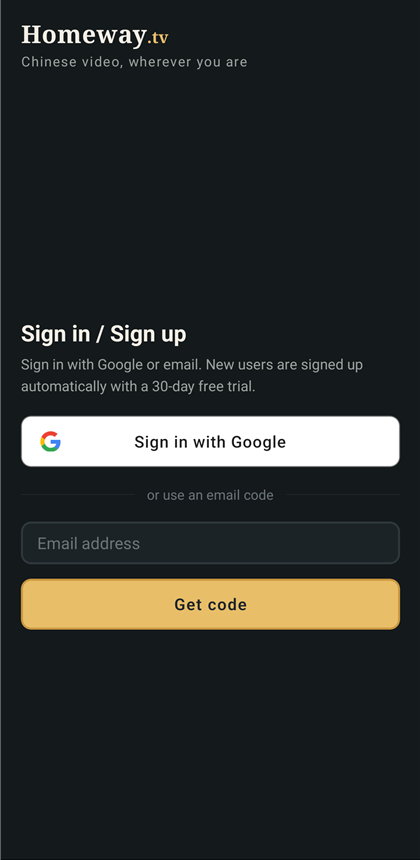
- Open Homeway and sign in with a verification code sent to your email, or with your Google account. New users are signed up automatically and get a 7-day free trial.
- Tap the moon gate on the home screen. The first time, your phone asks whether to allow Homeway’s connection request — tap OK.
- Once the moon gate is lit, open your usual Chinese video apps to watch live TV and catch up on shows.
FAQ
Can I install it on a Huawei phone?
Huawei phones running EMUI or HarmonyOS 2 to 4 can install it with the installer from method 2. HarmonyOS NEXT (HarmonyOS 5 and later) can’t install Android apps, so it isn’t supported yet.
Can I keep using it on my phone for free?
Yes. After the 7-day trial you move to the free plan automatically, which you can keep using on one phone. Tablets aren’t covered by the free plan — use them during the trial or with a subscription.
How do I use my phone to sign in on my TV?
In the phone app, open Account and tap “Scan to sign in a TV”, scan the QR code on Homeway’s sign-in screen on your TV or computer, then confirm on your phone. Nothing to type on the TV.
Does Homeway affect my other apps?
No. Homeway only works with supported Chinese video apps. Your other apps, websites and games connect directly as usual — no slowdown, and no need to keep switching it on and off.
Can’t install it, or something won’t play? Email support@homeway.tv with your device model and system version and we’ll get back to you soon. You can also check Help & Support.
Other devices: TV & TV box · Android phone · Windows PC · Browser extension · iPhone & Mac