
How to install Homeway on Android TV, Xiaomi TV and TV boxes
The Homeway TV app is built for the remote, so the whole family can watch live TV, dramas and variety shows from China in the living room. Pick one of the four methods below: use method 1 if your TV has Google Play, otherwise methods 2–4.
Works with: Android-based TVs such as Xiaomi, Sony and TCL, Chromecast with Google TV, and all kinds of Android TV boxes. Samsung (Tizen) and LG (webOS) TVs aren’t supported yet — connect an Android box instead.
Method 1: Install from Google Play (recommended)
Most Android TV and Google TV sets and boxes come with the Google Play Store. Installing from there is the easiest option, and updates are automatic.
- Open the Google Play Store on your TV with the remote.
- Search for “Homeway”, select it and choose Install.
- When it’s done, choose Open, or find Homeway in your TV’s app list.
You can also open Homeway on Google Play on your phone or computer, sign in with the same Google account as your TV, and pick your TV to install it remotely.
Method 2: Install the APK with a browser or downloader
On TVs and boxes without Google Play, you can download the Homeway TV installer (APK) directly.
- Open the web browser on your TV, or a download tool such as “Downloader”.
- Enter
homeway.tv/tvin the address bar to download the TV installer. - When the download finishes, choose Install. If you’re told apps from unknown sources aren’t allowed, follow Allow apps from unknown sources below, then try again.
- Once installed, you can delete the installer to free up space on your TV.
Method 3: Install from a USB drive (Xiaomi and other Chinese-brand TVs)
If your TV has no browser, or typing a web address with the remote is a pain, download the installer on a computer and copy it over on a USB drive.
- On your computer, open homeway.tv/tv to download the TV installer (the file name ends in
.apk). - Copy the installer to the top level of a USB drive, then plug the drive into a USB port on your TV or box.
- Open the USB drive with the TV’s built-in file manager (on Xiaomi TVs, the “高清播放器” media player can browse files on the drive), find the installer and press OK on the remote to install.
- If installation is blocked, allow apps from unknown sources as described below, then open the installer again.
Method 4: Use your TV app store’s “local install”
Many Chinese-brand TVs and boxes come with a third-party app store such as Dangbei Market (当贝市场). These usually have a “local install” or “USB install” feature (本地安装 / U 盘安装) that can find installers on a USB drive.
- Follow steps 1 and 2 of method 3 to copy the TV installer to a USB drive and plug it into the TV.
- Open the app store on your TV and find “local install” or “USB install” in its menu (the location varies by version).
- Select the Homeway installer and follow the prompts to install.
Allow apps from unknown sources
When you install from anywhere other than Google Play, your TV may first ask you to allow apps from unknown sources. Menu names vary a little by brand and system version; the usual places are:
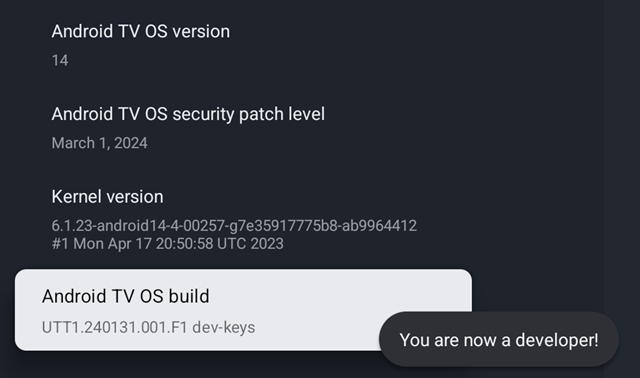
- Google TV (e.g. Chromecast with Google TV): first go to Settings → System → About, select “Android TV OS build” (the item showing a build number) and press OK 7 times until you see “You are now a developer!”; then go to Settings → Apps → Security and, under “Unknown sources” or “Install unknown apps”, turn it on for the app you’re installing with (such as Downloader or a file manager).
- Android TV: Settings → Device Preferences → Security & restrictions → Unknown sources, then turn it on for the app you’re installing with.
- Xiaomi TV (China-market system, menus in Chinese): 设置 (Settings) → 账号与安全 (Account & Security) → 安装未知应用 (Install unknown apps) — on some models it’s called 允许安装未知来源的应用 — and choose Allow.
You only need to allow the one app you’re installing with. Once Homeway is installed, you can turn it off again.
Sign in and start watching live TV
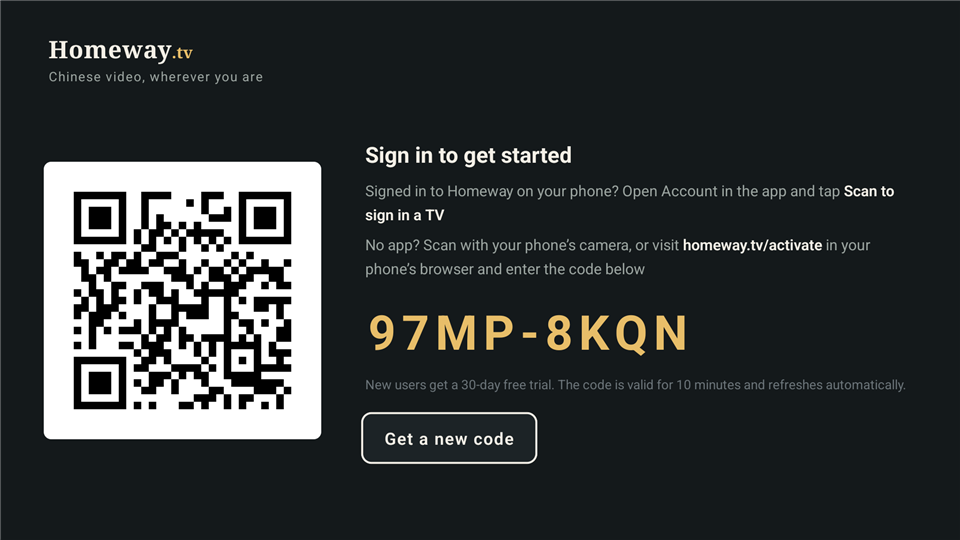
- Open Homeway on your TV. You’ll see an activation code and a QR code.
- Scan the QR code with your phone’s camera, or open homeway.tv/activate in your phone’s browser and enter the code. Sign in with your email and confirm — no typing an email address with the remote.
- Install your usual Chinese video apps on the TV.
- Go back to Homeway’s home screen, light up the moon gate, then open your video apps to watch live TV and catch up on shows.
FAQ
What’s the difference between the TV and phone installers?
Both installers are the same app, and on a TV it automatically shows the remote-friendly TV interface. The difference is that the TV installer (homeway.tv/tv) also runs on 32-bit systems — many TVs and boxes run a 32-bit system even on a 64-bit chip — while the phone installer (homeway.tv/android) only runs on 64-bit systems. So on a TV, download the TV version.
My Xiaomi TV blocks the install or the install fails. What now?
First make sure you’ve allowed apps from unknown sources as described above. If it still fails, download the installer again — an incomplete download won’t install either. If that doesn’t help, email your TV model and system version to support@homeway.tv.
Does it work on Samsung or LG TVs?
Samsung (Tizen) and LG (webOS) systems aren’t supported yet. You can get an Android TV box or a Google TV device, plug it into your TV’s HDMI port, and install Homeway on it as described above.
Can I use the free plan on a TV?
The free plan works on one phone only. New users get a 7-day free trial on first sign-in, during which the TV works normally; after that, subscribe to Standard or Family to keep watching on your TV.
How do I update it later?
If you installed from Google Play, it updates automatically. If you used the installer, Homeway lets you know when a new version is out — download it and install it over the old one. There’s no need to uninstall first, and you’ll stay signed in.
Can’t install it, or something won’t play? Email support@homeway.tv with your device model and system version and we’ll get back to you soon. You can also check Help & Support.
Other devices: TV & TV box · Android phone · Windows PC · Browser extension · iPhone & Mac